Buraq
Guides›WhatsApp›Verification & limits
العربية
User guide · 5 sections · ~10 min

Verification, messaging limits and display name.

Meta decides how many customers you can message a day, and Meta approves the name your customers see. Buraq can't change or speed up those decisions, but it can help you submit right the first time. This guide covers all three.

✅ Before you start: your number must be connected. Not yet? Start with the activation guide.
1
Section 1

Why verify your business with Meta?

Verification proves to Meta that your business is real and officially registered. Without it you can still send, but under a low ceiling.

UnverifiedVerified
Daily messaging limit250 customers2,000 customers, rising automatically with quality
Display nameReviewed, higher rejection riskApproved faster when it matches a verified business
Blue badgeNot eligibleEligible to apply
Account securityEasier to restrictMore stable, less likely to be restricted
2
Section 2

What you need before you start

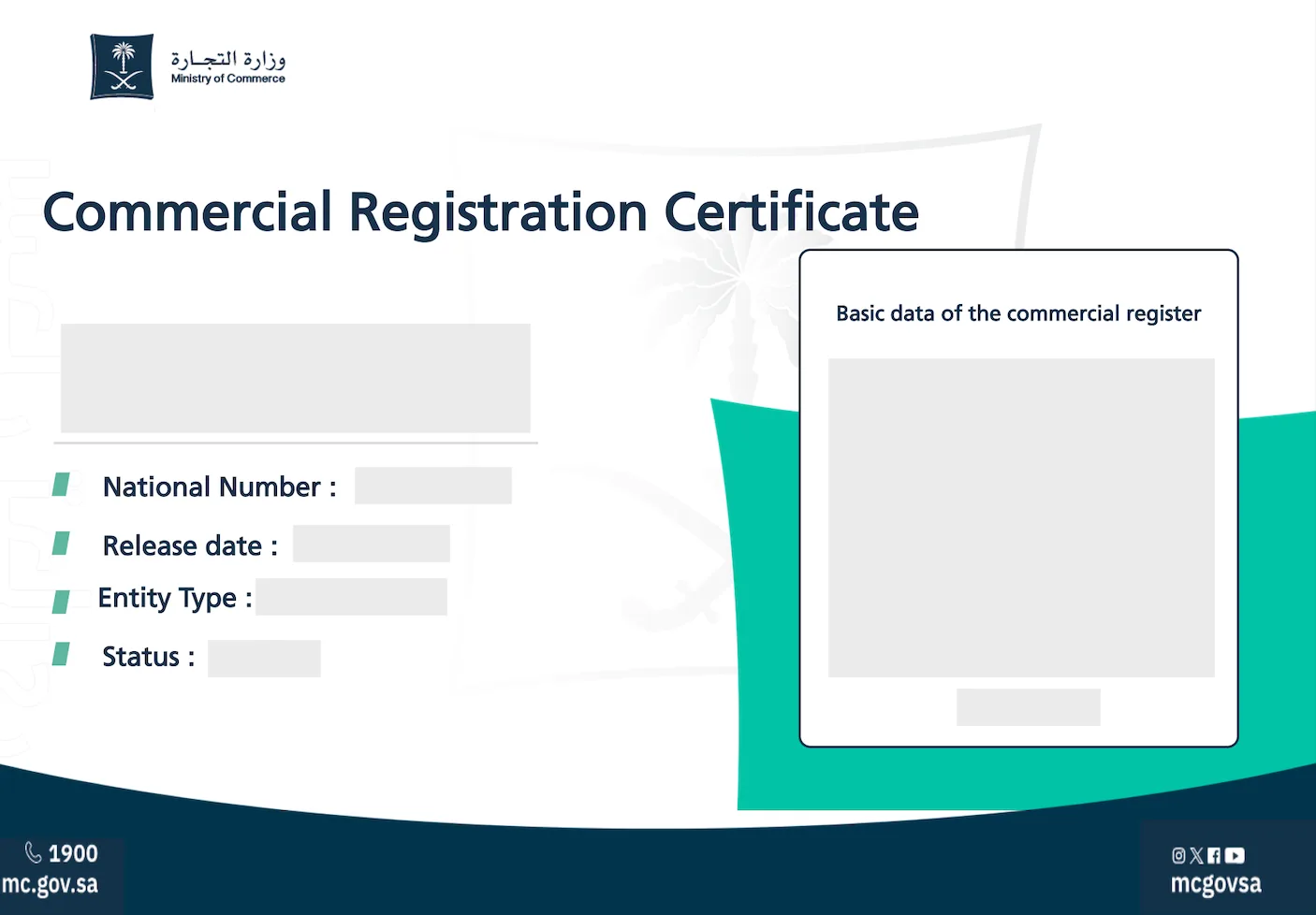
  • Commercial Registration in English (PDF) from the Ministry of Commerce portal.
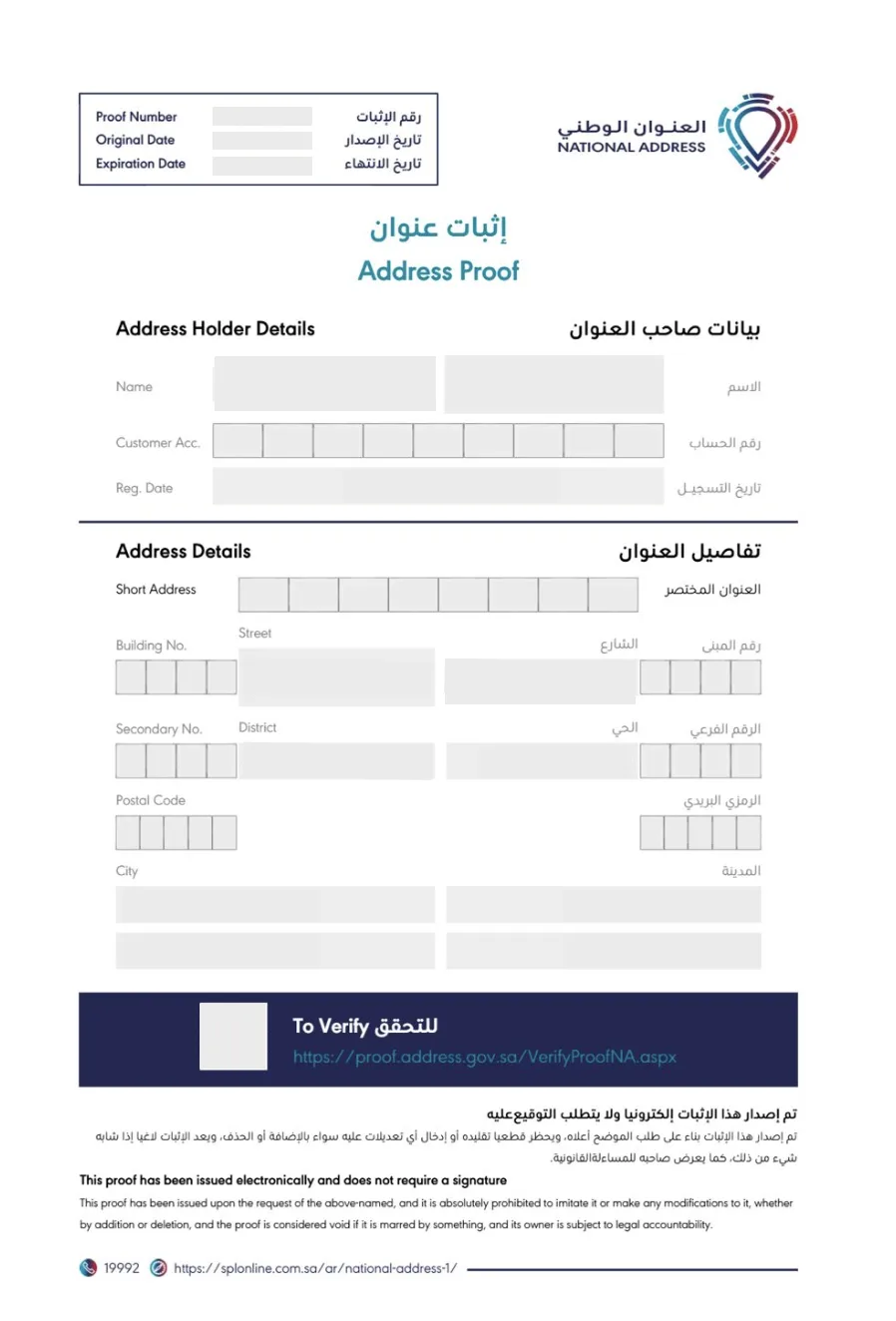
  • National Address proof (PDF) from the SPL portal, Arabic and English.
  • Business portfolio details that match the documents: the same legal name and address.
  • A live website with your business name, what you do, contact details and a privacy policy.
Sample · Commercial Registration (English)
Sample English Commercial Registration certificate from the Ministry of Commerce, details redacted
Sample · National Address proof
Sample bilingual National Address proof, owner details redacted

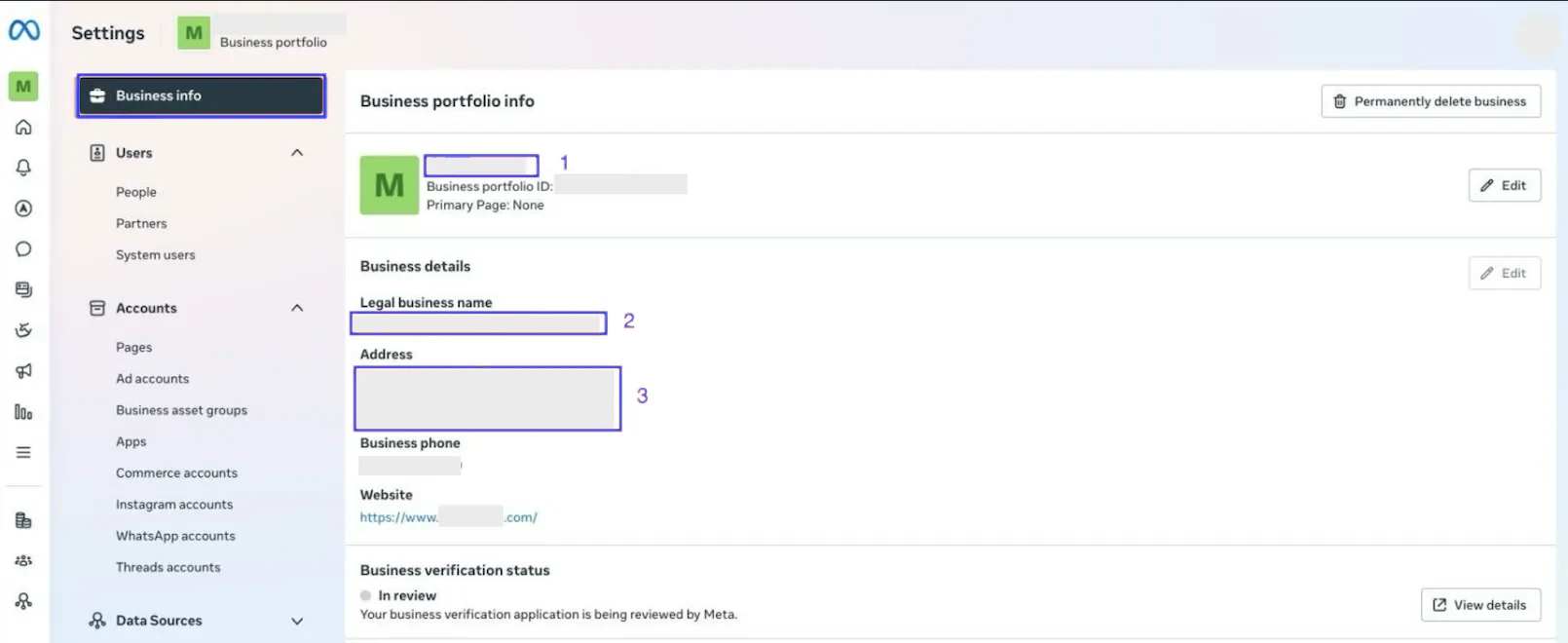
Then open Meta Business Suite → Settings → Business info and check that the three marked fields match your documents exactly:

  • (1) Portfolio name
  • (2) Legal business name: as written on the English Commercial Registration.
  • (3) Address: as written on the National Address proof.
business.facebook.com · Settings · Business info
Business info page in Meta Business Suite settings with portfolio name (1), legal name (2) and address (3) marked
!
The #1 rejection reason: mismatch. An extra letter, a different abbreviation ("Co." vs "Company") or an incomplete address is enough for Meta to reject the request.
3
Section 3

Submit verification

  1. On the same Business info page, scroll to Business verification status and click Start verification.
  2. Choose Saudi Arabia as the country and confirm the business details.
  3. Pick how to confirm contact: an email on your website's domain, or an SMS/call to the business phone.
  4. Upload the English Commercial Registration as the legal-name document.
  5. Upload the National Address proof as the address document.
  6. Click Submit. Status changes to "In review".

Meta usually decides within one day to two weeks. If it's rejected, Meta states the reason, and you can fix it and resubmit.

i
Want a second pair of eyes before submitting? Send the Buraq team on WhatsApp +966 11 511 5807 three files: the Commercial Registration (PDF), the National Address (PDF) and a screenshot of your Business info page. We'll check they match and tell you what to fix.
4
Section 4

How the daily messaging limit works

  • It counts customers, not messages. The limit is the number of distinct customers you start conversations with in 24 hours. Five messages to the same customer count once.
  • Replies don't count. When the customer messaged you first, replying within 24 hours doesn't use up the limit.
  • Shared across the account. Every number under the same business portfolio shares one limit.
  • Starts at 250, moves to 2,000 after verification, then rises automatically (10,000, then 100,000, then unlimited) as you use your current limit with good quality.
4.1 Keep quality high
  • Only message customers who opted in to hear from you.
  • Grow campaigns gradually; don't blast the whole list on day one.
  • Keep messages useful and clear, and make opting out easy. Blocks and reports lower your number's quality and stop the limit from rising.
5
Section 5

Display name approval

The display name is what customers see at the top of the chat. Meta reviews it after you connect, usually within one to two days.

Connection methodWhat happens to the display name
New numberThe name you typed during connection goes to review.
WhatsApp Business app numberKeeps the name already on the app; any change goes to review.
5.1 Why Meta rejects a name
  • No clear link to the verified business name or the website.
  • A generic word on its own, like "Store" or "Offers".
  • Emojis, URLs, or excessive capital letters.
  • Uses a brand name you don't own.
5.2 How to improve your chances
  • Use the business name from your Commercial Registration, or the name shown on your website.
  • Make sure the name appears on your website and social profiles so Meta can confirm it.
  • Verify your business first; names that match a verified business go through more easily.
!
Choose carefully. Once a name is approved, Meta limits changing it again for a period, and any change goes back to review.

You're verified. Time for your first campaign.

Verification raises your daily limit. The next guide walks you through a full WhatsApp campaign.