Buraq
Guides›Launch a campaign
Start
User guide · 7 steps · ~5 min

Launch your first WhatsApp campaign with Buraq.

Send a templated WhatsApp message to a list of customers — from upload to deploy. This guide walks you through the full flow inside the Bot Builder.

📩 Need first: a WhatsApp Business sender connected to your Buraq workspace
1
Step 1

Sign in to Buraq

Open app.buraq.ai and sign in with the email and password tied to your workspace. If you've forgotten your password, use the Forgot password? link to reset it.

New to Buraq? Click Register at the bottom of the page to create an account, then come back here.

app.buraq.ai/login
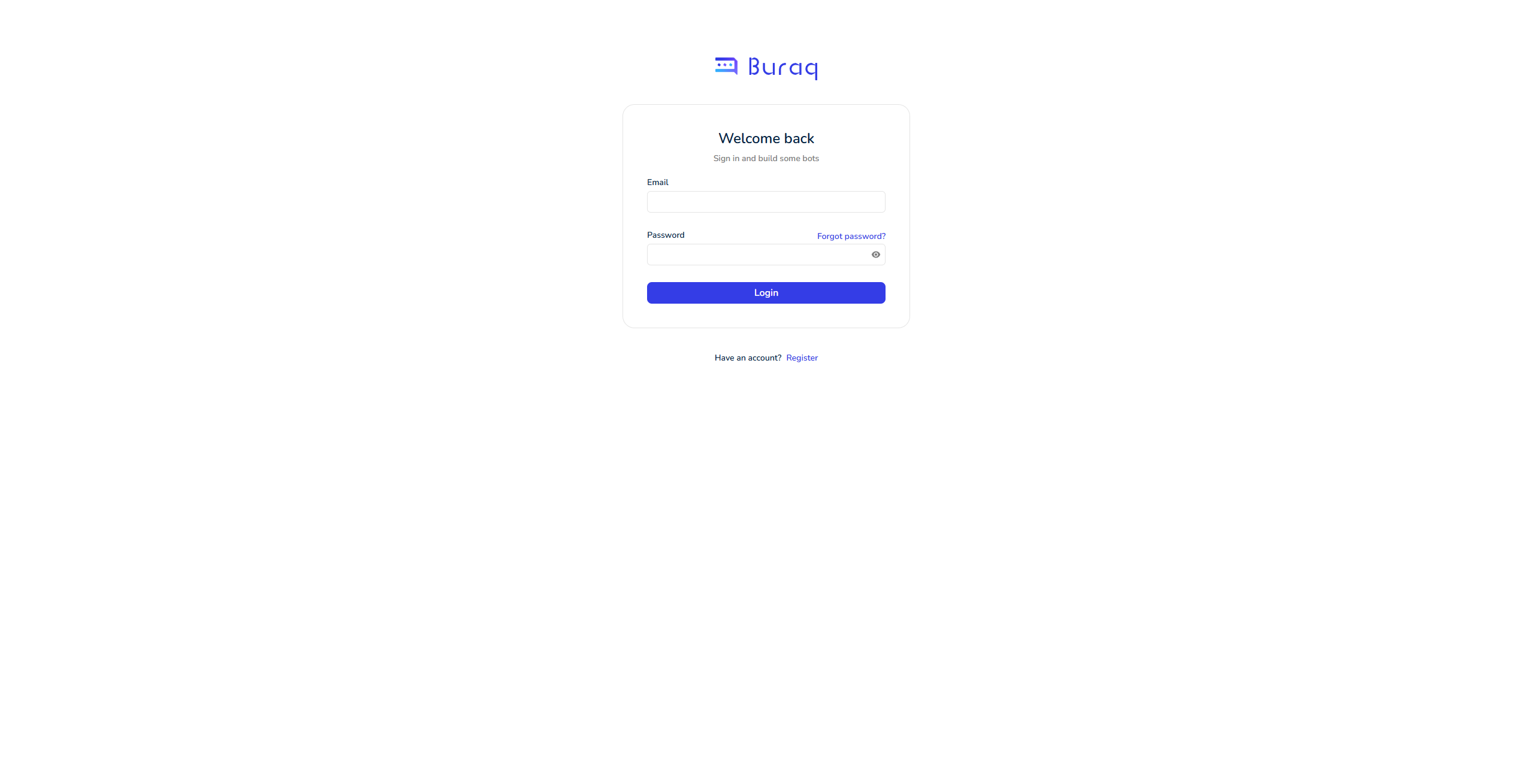
Buraq login page with email and password fields
2
Step 2

Open the Bot Builder

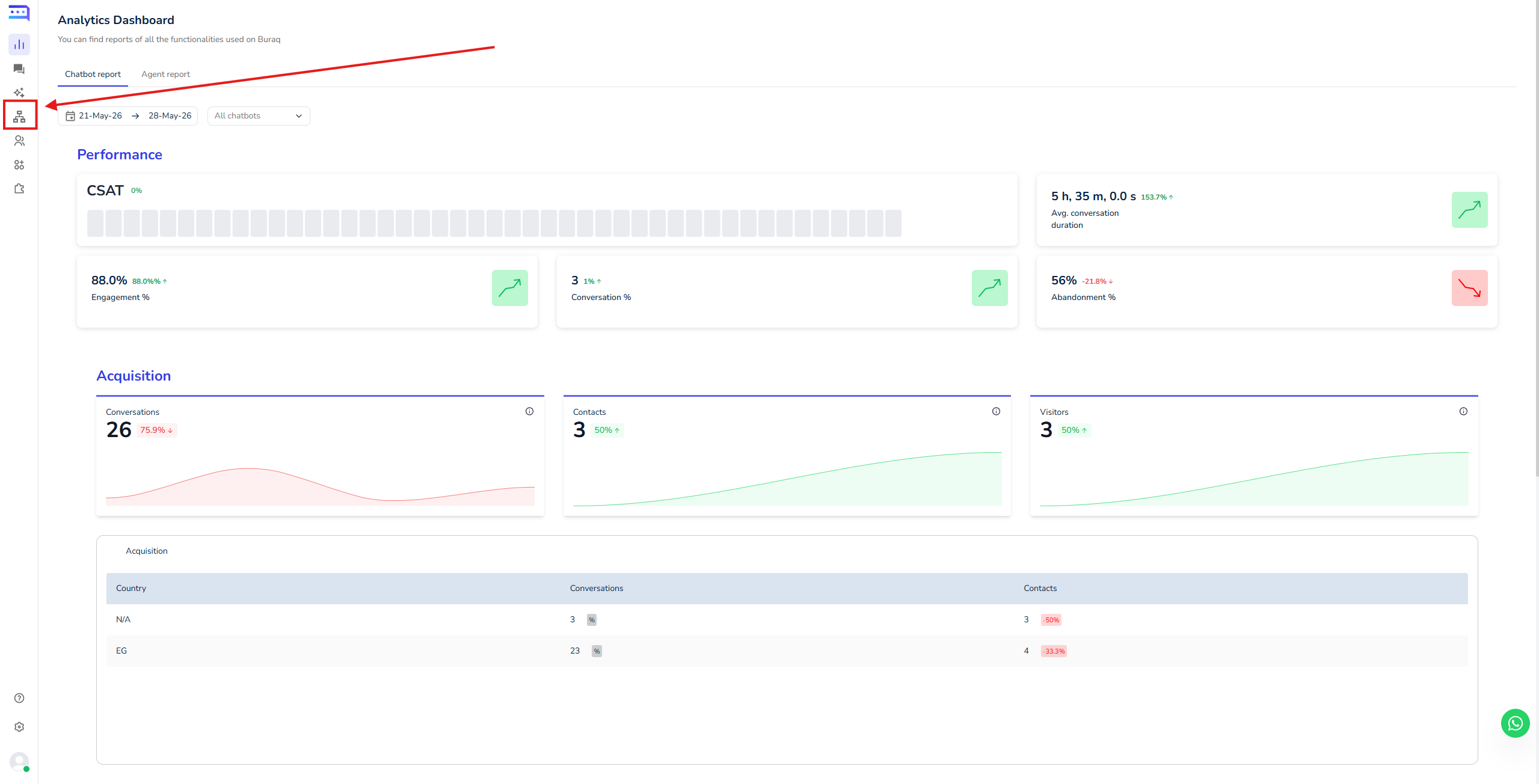
From the left sidebar, click the Bot Builder icon — the third icon from the top. This is the home for every bot in your workspace, both inbound (responding to incoming messages) and outbound (reaching out to your contacts).

You'll land on a list of every bot you've already created.

app.buraq.ai/dashboard
Analytics dashboard with an arrow pointing to the Bot Builder icon in the sidebar
3
Step 3

Build an Outbound bot

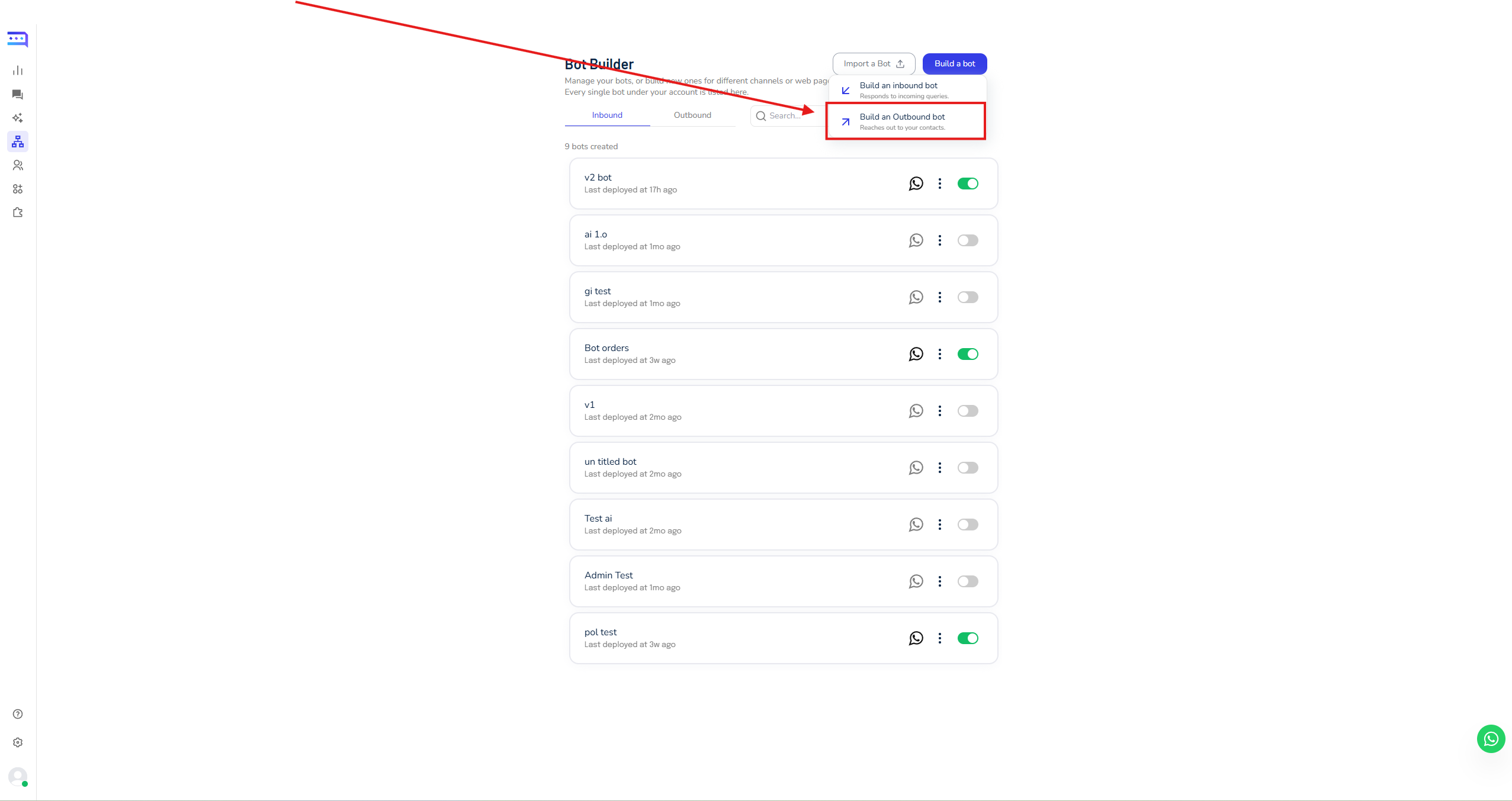
Click Build a bot in the top-right corner. A dropdown opens with two options — pick Build an Outbound bot ("Reaches out to your contacts").

Outbound bots are the right choice for campaigns: they trigger on a list you provide, instead of waiting for a customer to message you first.

i
Inbound vs outbound. Inbound bots reply to incoming WhatsApp messages — use those for support and FAQs. Outbound bots send the first message — use those for campaigns, cart recovery, and announcements.
app.buraq.ai/bots
Bot Builder list view with the Build an Outbound bot menu item highlighted
4
Step 4

Upload your CSV and map columns to variables

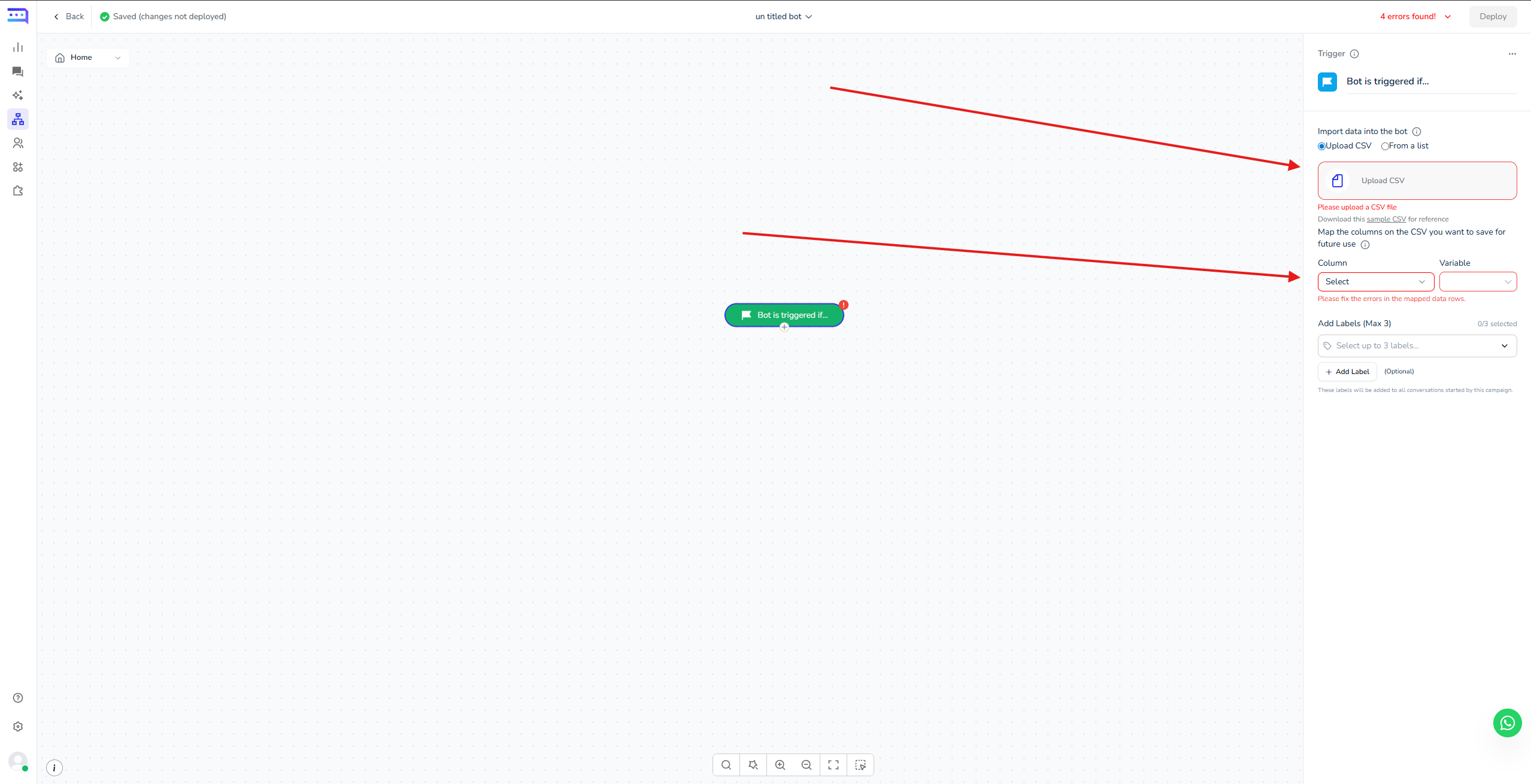
The trigger panel on the right opens automatically. Choose Upload CSV, then click the upload area and pick the CSV file with your contacts.

Once it's uploaded, map each column you want to use to a variable. At minimum you'll need a phone-number column mapped to a phone variable — that's how Buraq knows where to send each message. Map any other columns (first name, order ID, store name) that you want to use in the message body.

!
CSV format tip. Use the sample CSV link in the panel to download a starter file with the right column headers — copy your contacts into it to avoid mapping errors.
app.buraq.ai/bots/new
Trigger panel showing Upload CSV option and column-to-variable mapping fields
5
Step 5

Add a Send WhatsApp node

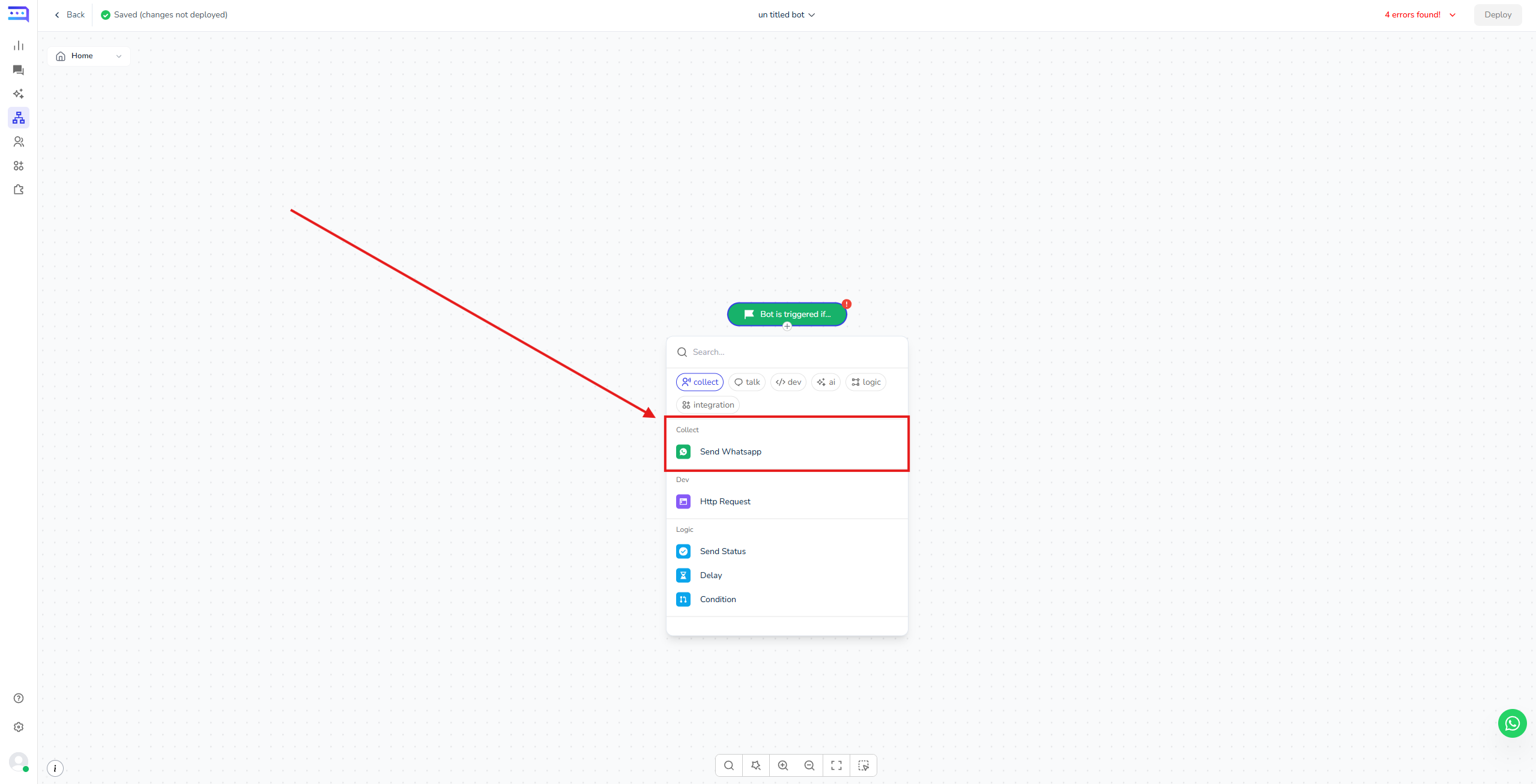
Click the + button below the trigger node on the canvas. A node picker opens with categories — collect, talk, dev, ai, logic, integration.

Under the Collect section pick Send Whatsapp. The node drops onto the canvas, wired to the trigger.

app.buraq.ai/bots/new
Node picker showing the Send Whatsapp option highlighted under Collect
6
Step 6

Configure the Send WhatsApp node

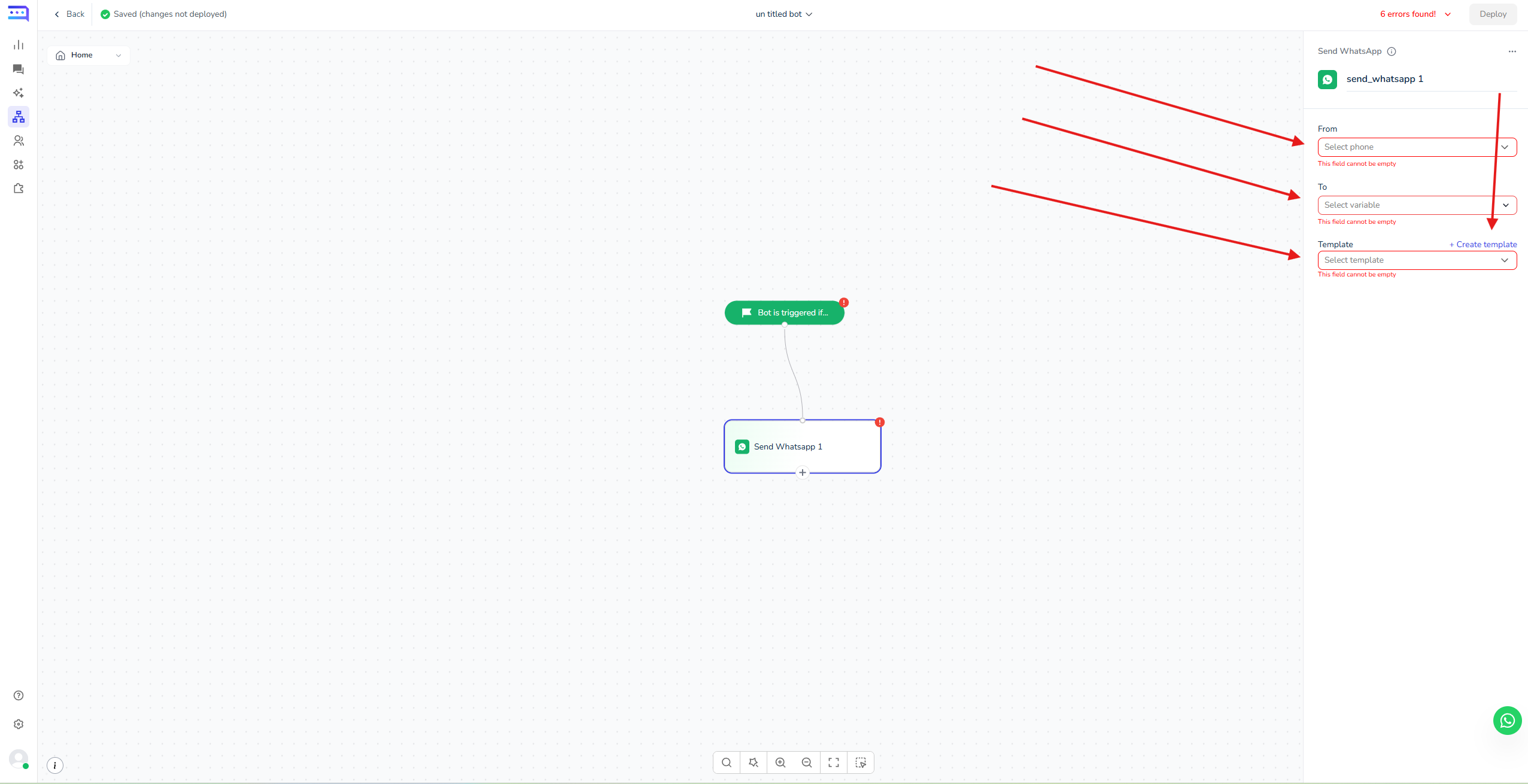
Click the new Send Whatsapp node to open its config panel. Three fields are required:

  • From — the WhatsApp Business phone number that sends the campaign. Pick the sender you've already connected to Buraq.
  • To — the variable holding each contact's phone number. Pick the variable you mapped in step 4 (usually phone).
  • Template — the approved WhatsApp template to send. If you haven't created one yet, click + Create template in the top-right of the panel.

When all three are filled in, the red "This field cannot be empty" warnings disappear and the error count in the top bar drops to zero.

app.buraq.ai/bots/new
Send WhatsApp panel with From, To, and Template fields, each marked required
7
Step 7

Deploy the campaign

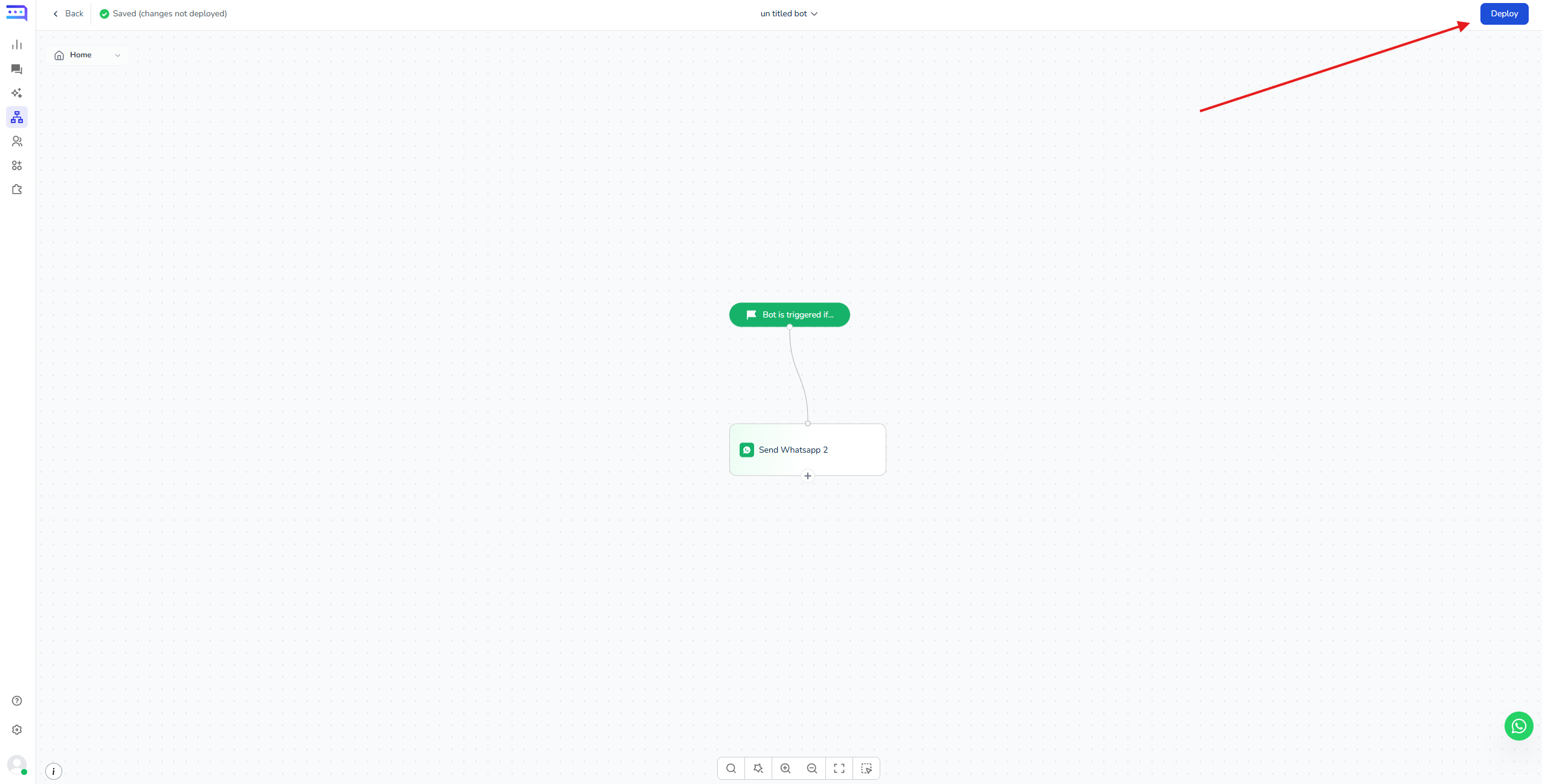
Once every node is green and the top bar shows no errors, the Deploy button in the top-right becomes active. Click it to send your campaign.

Buraq starts dispatching the template to each contact in your CSV, using the variables you mapped. You can monitor delivery and replies in real time from the Unified inbox.

✓
That's it. The first sends start within seconds. If a customer replies, the conversation lands in your inbox — and Buraq can take over the reply automatically.
app.buraq.ai/bots/new
Bot canvas with no errors and the Deploy button highlighted in the top-right

Campaign live? Now make it smarter.

Open the Unified inbox to watch replies come in. When customers respond, Buraq's AI handles the conversation in your Saudi-dialect tone — escalating only what your team needs to see.